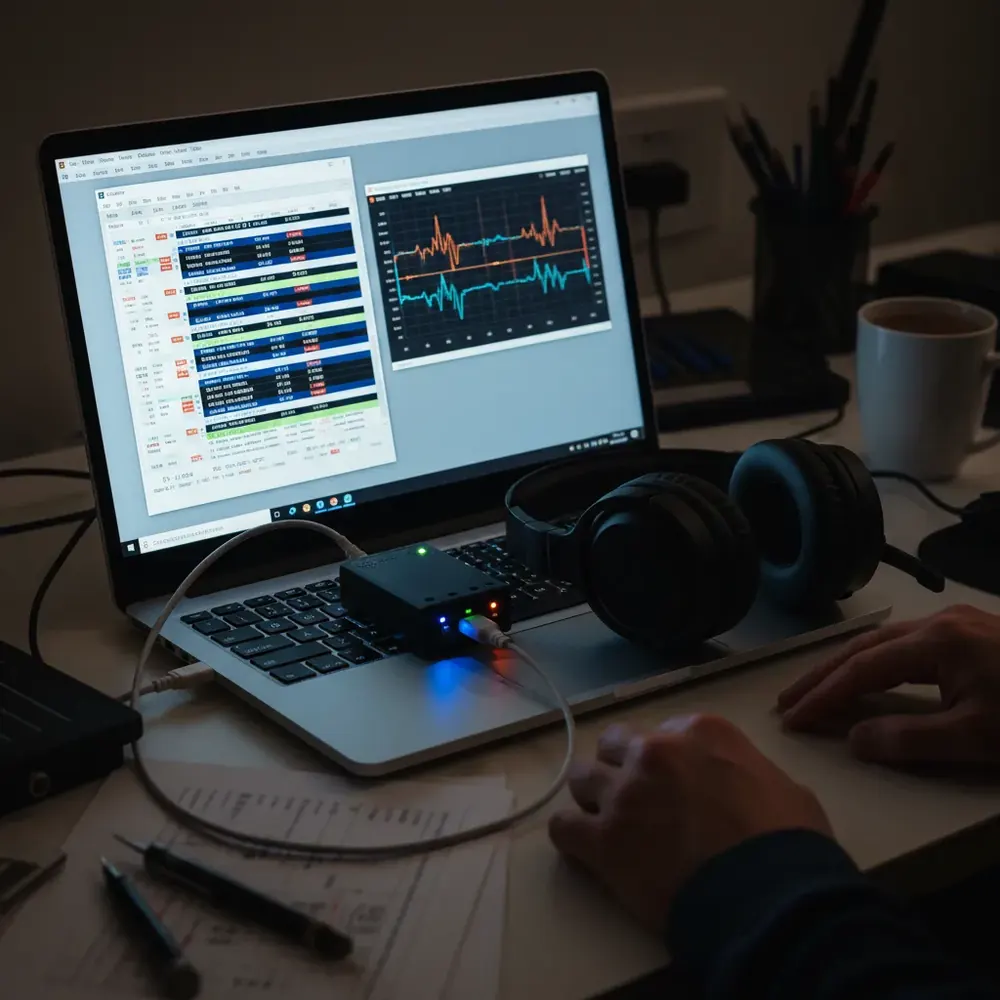
USB audio devices, headsets, speakers, microphones, and audio interfaces, transmit audio data as isochronous USB transfers. When debugging audio quality issues, dropouts, or latency problems, capturing the actual audio data from the USB bus and playing it back can immediately reveal whether the problem is in the USB transport layer or the audio processing pipeline. The Beagle USB 480 Protocol Analyzer captures this data in real time, and with some post-processing, the raw audio bytes can be converted to a playable WAV file.
Capturing USB Audio Traffic
Connect the Beagle USB 480 inline between the USB host (PC) and the audio device (headset, speaker, or microphone). Start capture in Data Center Software. The analyzer will capture all USB traffic on the bus, setup packets, control transfers, and the isochronous audio data transfers.
Filtering to Audio Data
USB audio generates a continuous stream of isochronous OUT transfers (for playback) or IN transfers (for microphone capture). To isolate the audio data:
1. Disable SOFs and Keep Alives via the LiveFilter in Data Center Software. Start-of-Frame packets occur every 1 ms and are not relevant for audio extraction, filtering them dramatically reduces the capture file size and makes the audio data easier to identify.
2. Identify the audio endpoint: look for the isochronous endpoint number in the device’s configuration descriptor. Audio data typically flows on endpoint addresses like 0x01 (OUT for playback) or 0x81 (IN for microphone).
3. Use Quick Filter: set Exclude Before/After Index to trim the capture to just the region containing the audio data you want to extract.
Exporting Raw Audio Data
Once you have isolated the isochronous audio transfers:
1. Deselect all columns except the DATA column in Data Center’s display settings. This ensures the export contains only raw audio bytes without timestamps, packet headers, or endpoint information.
2. Export as .bin: use File > Export and select the .bin format. This produces a raw binary file containing the audio sample data as it appeared on the USB bus.
Converting to Playable Audio
The exported .bin file contains raw PCM audio samples, but it is not in a standard audio file format. To play it:
1. Open Audacity (or another audio editor that supports raw audio import).
2. Select File > Import > Raw Audio.
3. Configure the import parameters to match the original audio stream’s encoding:
- Sample format: typically 16-bit signed (little-endian) for CD-quality audio.
- Sample rate: match the device’s configured sample rate (commonly 44,100 Hz or 48,000 Hz).
- Channels: Mono or Stereo, depending on the audio device configuration.
4.
Click Import and play the audio.
If the audio sounds correct, the USB transport is working properly and any audio quality issues are downstream of the USB interface. If the audio contains clicks, pops, gaps, or pitch errors, the USB isochronous transfer timing may be the root cause, and the Beagle USB 480’s packet-level timestamps can pinpoint exactly which transfers were delayed or dropped.
Practical Applications
- USB headset debugging: verify that audio data arrives intact over the USB bus when users report crackling or dropouts.
- USB audio interface development: confirm that isochronous transfers maintain consistent timing under varying USB bus load.
- Audio codec validation: extract and compare raw audio data before and after USB transport to identify encoding/decoding artifacts.
- Compliance testing: verify USB Audio Class descriptor structures and isochronous endpoint behavior against UAC specifications.
GSAS Micro Systems provides the Beagle USB 480 with applications guidance for USB audio development teams across India, from consumer electronics to professional audio equipment manufacturers.
Also appears in:
Interested in Total Phase tools?
Talk to our application engineers for personalized tool recommendations.
More from Total Phase
View all →
Aardvark vs Cheetah vs Promira: Total Phase Host Adapter Guide (India)
17 Jul · 6 min
Automated EV Charger Test Bench in India: GW Instek AC Source, DC Load and Battery Emulator
6 Jun · 16 min
Best Logic Analyzer in India (2026): A Vendor-Neutral Buying Guide for Embedded Teams
5 Jun · 10 min
Capturing I²C/SPI Data to Train Edge AI: A Protocol-Analyzer Workflow for Indian Embedded Teams
4 Jun · 9 min
Emulating Processor Power for Thermal Testing: Why Constant Power
7 Oct · 7 min
CRPS and Rack Power Supply Testing: The Six Tests That Matter
7 Oct · 7 min