In short
Per Siemens, Xpedition Advanced includes manufacturing output automation, Valor-powered DFM checks, BluePrint manufacturing drawing and documentation capabilities, panelization, pack and release, and assembly panel design. Core DFF and DFA checks run in the cloud app PCBflow; the fabrication drawing, assembly drawing and assembly panel are built in BluePrint; and Siemens' edition checklist lists panelization for Xpedition Advanced and Xpedition Enterprise only.
Siemens introduced Xpedition Advanced with the Xpedition 2610 release, announced on 26 October 2026. On manufacturing, its product page says the edition “includes manufacturing output automation, Valor-powered DFM checks, BluePrint manufacturing drawing and documentation capabilities, panelization, pack and release, and assembly panel design”. For a layout engineer or NPI lead that list is a hand-off in five steps: generate the outputs, analyse them in PCBflow, document the board in BluePrint, design the assembly panel, then pack and release. Every product statement below comes from Siemens’ public Xpedition pages, the Advanced fact sheet, the BluePrint-PCB page and the Advanced Getting Started guide, all linked under References.
The full checklist is on our Xpedition family page, and the edition has its own Xpedition Advanced page.
Manufacturing capabilities by edition
Siemens’ edition checklist heads this group “MFG verification / documentation” and labels it “Powered by Valor”. The rows are in Siemens’ order. Core, Extended and Option are Siemens’ words. “Included” stands for a tick or the word “included”, and “Not listed” for an empty cell.
| Capability (Siemens) | PADS Pro Essentials | Xpedition Standard | Xpedition Advanced | Xpedition Enterprise |
|---|---|---|---|---|
| Manufacturing outputs - manual | Included | Included | Included | Included |
| Manufacturing output automation | Not listed | Core | Core | Extended |
| DFM checks (DFF, DFA) core | Included | Included | Included | Option |
| DFM checks (DFF, DFA) extended | Option | Option | Option | Option |
| Manufacturing drawing creation | Not listed | Included | Included | Included |
| Integrated DFM checks in layout | Not listed | Not listed | Not listed | Included |
| Panelization | Not listed | Not listed | Included | Included |
One row separates Advanced from Standard: panelization. Siemens’ Advanced page also names “additional BluePrint capabilities such as pack and release and assembly panel design”. Pack and release has no row of its own. Assembly panel design is what Siemens’ Panelization tutorial covers (Step 4). Xpedition Advanced DS is a schematic-only seat. The fact sheet’s capability table leaves its manufacturing rows empty, so the hand-off needs a full Advanced seat.
Step 1: Generate the manufacturing outputs
Siemens’ “Layout” product introduction walks through two outputs from Xpedition Layout: NC Drill and ODB++. The order matters. Siemens: “create NC Drill data first to make sure that the output files created thereafter contain the correct drill data.”
The ODB++ export writes a compressed folder that, in Siemens’ words, “you would send to Fabrication”. Siemens’ DFM tutorial says why it is one file: the ODB++ archive “packages all circuit board design information into a single file for manufacturers, eliminating manual data entry errors”. Siemens’ buyer’s guide adds that Xpedition supports “intelligent manufacturing data exchange (e.g., ODB++ / IPC-2581)”. Ask your fabricator and assembler which format they want before the first release.
Edition check. Manual manufacturing outputs are in all four editions. Output automation is Core in Xpedition Standard and Xpedition Advanced and Extended in Xpedition Enterprise. The checklist does not itemise what Core and Extended automate.
Step 2: Run DFM analysis in PCBflow
General background: a design rule check confirms the layout obeys the rules you set. A design for manufacturing (DFM) check asks whether a particular factory can build it, which is why it runs against a manufacturer’s ruleset.
Siemens’ Getting Started guide lists PCBflow among the cloud apps an Xpedition Advanced licence gives access to, and describes it as a browser-based cloud application for checking PCB designs for manufacturability. You open it from Layout or in a browser. Siemens’ “Design for MFG Analysis” product introduction walks through two analyses, fabrication first.
| Fabrication analysis (DFF) | Assembly analysis (DFA) | |
|---|---|---|
| Input | The ODB++ design dataset | The dataset plus an Excel BOM with, at minimum, Manufacturer, Manufacturer Part Number and Reference Designator |
| Extra step | None | Map the BOM columns, then review how PCBflow maps part numbers to Valor Parts Library (VPL) component models. Matches are optional, and Siemens advises matching as many as possible |
| What Siemens says it checks | The design against selected manufacturer rulesets | The same, with rules for automated optical inspection, solder mask, solder paste, silkscreen, manual soldering and component interference |
Four things to know before the first run:
- Profiles. You pick one or more DFM profiles and can filter them by company name or group, industry type or country. Some need the owning company’s permission. The sources used here do not list which manufacturers publish a profile, so look for yours in PCBflow.
- Reports. In the Report Viewer you flag critical results and hide the ones you can ignore. A report exports to Excel or PDF, or goes out as an emailed link with an expiry time. The recipient needs no PCBflow account and cannot flag, hide or export.
- Runs. Siemens’ tutorial has you use sample files so that you “will not consume valuable DFM runs”. The sources used here do not say whether an Xpedition Advanced subscription limits DFM runs, or how many it includes, so ask before you plan to check every iteration.
- Data location. An analysis means uploading the dataset to a cloud application. Siemens’ guide gives three storage regions for the cloud account: United States (N. Virginia), Europe (Frankfurt) and Asia Pacific (Japan). None is in India, and the guide notes that the region cannot be changed once it is selected. Siemens’ public material does not state what is stored there. If you have data-residency rules, confirm this for your configuration before purchase. Our getting-started post covers the account setup.
Edition check. Core DFF and DFA checks are Included in PADS Pro Essentials, Xpedition Standard and Xpedition Advanced, and an Option in Xpedition Enterprise. Extended checks are an Option in all four, and the checklist does not say where core ends and extended begins. Integrated DFM checks in layout are listed for Xpedition Enterprise only, so in Advanced the loop is export, upload, analyse, fix. Valor NPI is a separate Siemens product, and Siemens’ Advanced page, fact sheet and guide do not list it as part of the subscription. See our DFM and DFA guide and Valor NPI 2610 post.
Step 3: Document the board in BluePrint
Siemens’ Advanced page links to its BluePrint-PCB page, which gives the product’s job as producing “comprehensive electronic drawings to drive PCB instructions of the fabrication, assembly and inspection process”. You start BluePrint from Layout and load the design into a startup file (*.bps), which Siemens’ “Documentation Creation” product introduction calls “your reusable documentation templates”. The default template holds a fabrication drawing and an assembly drawing under a BluePrint Release Package.
Per the BluePrint-PCB page, drawings stay tied to the design data: “All drawing content derived from imported design data is synchronized to its source-PCB design file.”
PCB fabrication drawing
Siemens says the fabrication drawing “is used by PCB fabricators for drill, stack-up, dimensioning, and board finish notes”. The tutorial edits these parts of it:
- Drill chart. “Drill chart data is derived directly from your CAD design (sizes, quantities, plating).” Change a drill symbol and it updates in the chart and the drill pattern.
- Layer stack-up. Show the overall thickness and its tolerance.
- Dimensions. Automatic edge dimensions, coordinate dimensions from an origin on a tooling hole, and point-to-point dimensions between holes.
- Notes. A numbered callout stays linked to its note.
PCB assembly drawing and parts list
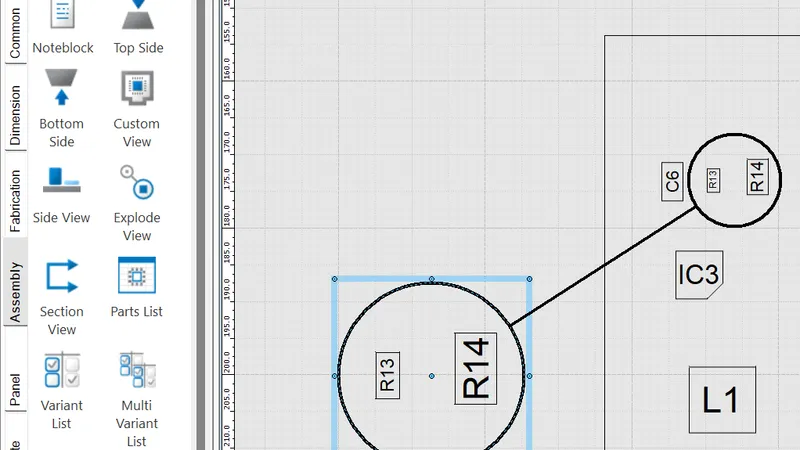
Siemens’ Documentation Creation tutorial says the assembly drawing “documents how all the components are placed on a PCB”. Its default template has top and bottom views, detail views and a parts list. For each view you choose whether components show reference designators, outlines or pins, and you can move a designator and mark pin 1. An exploded view updates as you move its callout, and a 3D assembly view can sit on the sheet. The parts list has a data source setting for how parts are sorted and whether they appear “as ranges or instances”.
To publish, save the set as a .dpd file, which Siemens notes can also be opened in the view-only BluePrint Viewer, and print to PDF.
Edition check. Manufacturing drawing creation is listed for Xpedition Standard, Xpedition Advanced and Xpedition Enterprise, and not for PADS Pro Essentials. The BluePrint-PCB page also describes variant assembly drawings and component coordinate charts. The public sources do not say which of those each edition carries, so confirm any you depend on.
Step 4: PCB panelization in BluePrint
General background: boards are usually assembled several to a panel, held by tabs or score lines and separated after soldering. Tooling holes and fiducials let the machines locate the panel.
Siemens’ “Panelization” product introduction says when the drawing is needed: “An Assembly Panel Drawing is required if the individual board is to be panelized. The Fabricator will deliver the finished board to assembly in panel form.” Per Siemens, it includes “step and repeat information, any added drills, web route and mill tab information”, and BluePrint builds it from the CAD database. The tutorial adds a sheet to the fabrication drawing, drags a panel onto it, then works through these elements:
| Panel element | What the tutorial does |
|---|---|
| Board array | Sets the number of boards, the spacing between them and the border spacing |
| Pinning holes and fiducials | Adds them in the same dialog, each placed as an offset from the left, right, top or bottom |
| Web routes | Adds a web route on a board outline, sets its width, applies it to all board images and merges the routes |
| Mill tabs | Drags tabs onto the web route and associates opposite tabs so they stay aligned |
| Drill chart | Lists “all the drills of the individual boards, plus the ones added in the panel”, with totals for all board images |
| Dimensions | Places coordinate dimensions from an origin on a pinning hole |
Siemens also lists score lines as part of the panelization tool. The tutorial does not use them. The values it enters (a 2.540 mm web route, 5 mm hole offsets) are examples: your assembler’s panel specification sets the real ones. The BluePrint-PCB page also describes automated array features that optimise the array of board images “to minimize material waste and component overlap from adjacent PCB images”. In the Advanced tutorial you enter the board count and spacing yourself, and the public sources do not say whether the automated features come with the Advanced subscription, so confirm this in a demo.
Edition check. Panelization is listed for Xpedition Advanced and Xpedition Enterprise only.
Step 5: Pack and release
Siemens’ Advanced page and fact sheet name pack and release as a BluePrint capability that Advanced adds, alongside assembly panel design. Siemens’ BluePrint-PCB page describes a feature under the heading “Package and release”: “Compile a collection of drawings, or the entire documentation set into a distribution ready compressed, self-extracting file that includes the BluePrint-PCB documentation viewer. Optionally, restrict the number of days available for viewing from the release package.” No product introduction walks through pack and release, and the checklist has no row for it. The public sources do not say whether the capability in Advanced matches that description in full. See it in a demo before you write a release procedure around it.
Going by Siemens’ BluePrint-PCB page, the release package carries drawings or the documentation set, with the viewer. The rest of a hand-off comes from the earlier steps. This list of hand-off contents is our summary of the tutorials. Siemens does not publish it as a definition of pack and release.
- ODB++ dataset and NC Drill data from Xpedition Layout
- Excel BOM from Xpedition Designer
- Fabrication drawing, assembly drawing, parts list and assembly panel drawing from BluePrint, as .dpd and PDF
- DFM reports from PCBflow, as PDF or Excel
Buying in India
GSAS Micro Systems is an authorized Siemens EDA partner in India. We supply Xpedition Standard with token-based add-ons, Xpedition Advanced, Xpedition Advanced DS, Xpedition Enterprise and Valor NPI. We do not publish prices for these products: GSAS quotes in INR with a GST invoice.
Tell us what your fabricator and assembler ask for (data format, drawing set, panel specification) and we will say which edition covers it. GSAS has offices in cities including Bengaluru, Hyderabad, Chennai, Pune, Mumbai and Delhi NCR. Request a quote or book a demo. Still choosing an edition? Read Xpedition Standard vs Xpedition Advanced or our four-edition chooser.
References
- Siemens: Xpedition Advanced (product page and FAQ)
- Siemens: Xpedition Advanced fact sheet (manufacturing verification and documentation, capability table)
- Siemens: Xpedition product family, section “Choose the right PCB design solution for you” (edition checklist)
- Siemens: BluePrint-PCB (documentation and assembly panels)
- Siemens: Getting Started guide for Xpedition Advanced, product introductions “Layout”, “Design for MFG Analysis”, “Documentation Creation” and “Panelization”
- Siemens: Xpedition buyer’s guide (manufacturing data exchange)
- Siemens EDA, Electronic Systems Design blog: What’s new in Xpedition 2610 (26 October 2026)
Also appears in:
Interested in Siemens EDA tools?
Talk to our application engineers for personalized tool recommendations.
More from Siemens EDA
View all →
PADS Pro Essentials vs Xpedition Standard: Which One to Start With
18 Nov · 8 min
Concurrent Schematic Design in Xpedition Advanced and Advanced DS
18 Nov · 7 min
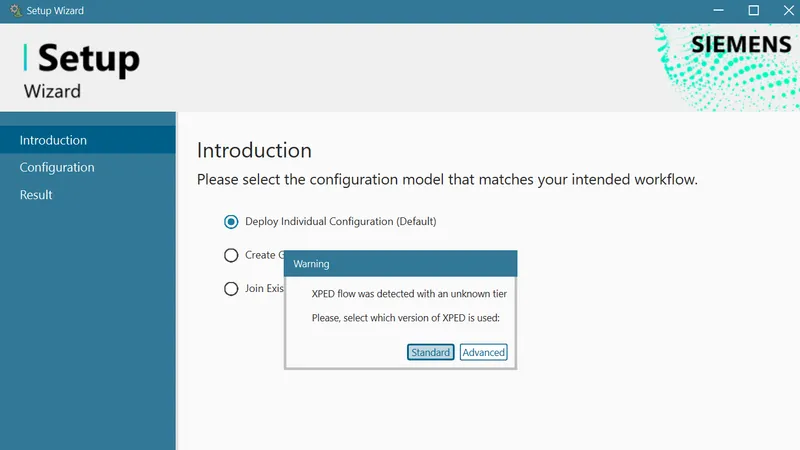
Getting Started with Xpedition Advanced: An Onboarding Checklist
18 Nov · 8 min
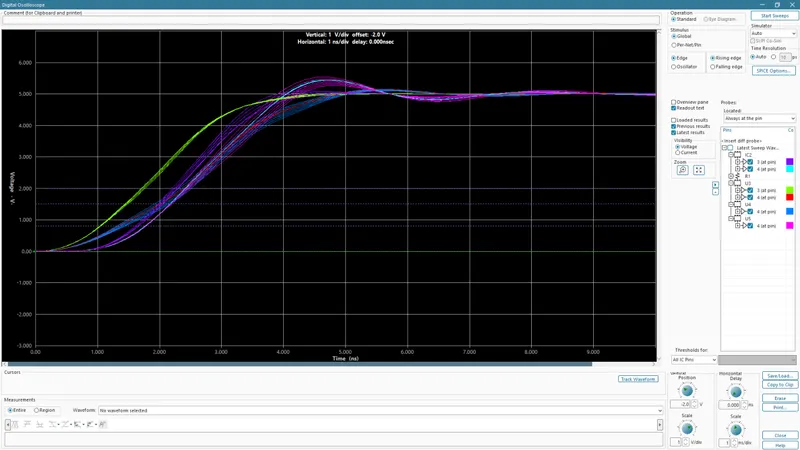
High-Speed PCB Design in Xpedition Advanced: Constraints, Routing and SI
18 Nov · 9 min
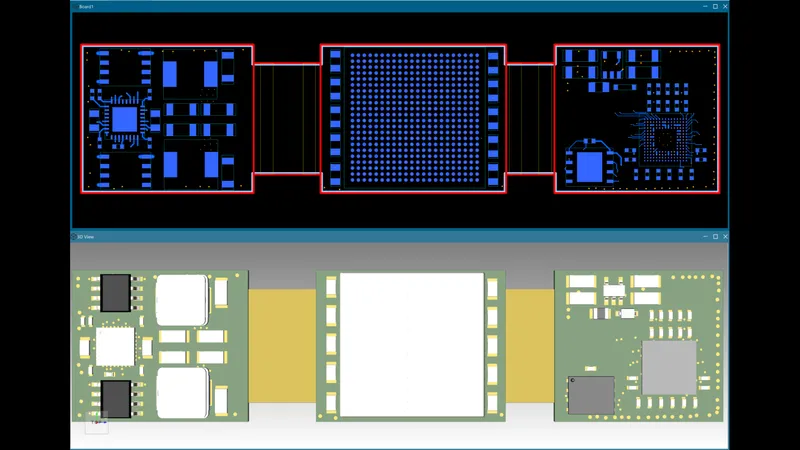
Rigid-Flex PCB Design in Xpedition Advanced: Stackups, Bend Areas and 3D
18 Nov · 8 min
Xpedition Advanced vs Xpedition Enterprise: Where Advanced Stops
18 Nov · 8 min