In short
Per Siemens' Getting Started guide, an administrator first configures the Enterprise Cloud Account in the Siemens Xcelerator Admin Console and assigns Xpedition Advanced licences, then each user installs 'Xpedition Advanced' and 'Xpedition Add Ons' through Siemens Software Center. Siemens' buyer's guide lists Windows 11 (64-bit) Enterprise or Pro and 32 GB RAM minimum recommended.
Siemens introduced Xpedition Advanced with the Xpedition 2610 release, announced on 26 October 2026, and publishes a public Getting Started guide for it. Per that guide, an administrator first configures the Enterprise Cloud Account and assigns licences, then each user installs the software through Siemens Software Center and works through Siemens’ tutorials. This post turns the guide into checklists. Every product statement comes from Siemens’ public sources: that guide (the revision generated on 12 November 2026) and its product introductions, the Xpedition buyer’s guide, the edition checklist, the Xpedition Advanced and Xpedition Advanced DS pages and the Xpedition 2610 blog post. All are linked under References.
Our Xpedition family page has a short outline of these steps, and the edition has its own Xpedition Advanced page.
Before you start: accounts and roles
Siemens asks administrators and users to set up their accounts with a business email address. Xpedition Advanced is a named-user subscription, which Siemens’ buyer’s guide defines this way: “Named User licensing assigns software access to individuals rather than shared machines.” Access follows the person, so decide who gets a seat and who administers the account before anyone installs anything.
The guide names these roles:
- Enterprise Cloud Account (ECA) administrator, who works in the Siemens Xcelerator Admin Console. Per Siemens, the ECA admin is “responsible for setting up and configuring products, managing user access to the purchased cloud products, and overseeing subscription licenses”.
- Support Center administrator, also called a site administrator. Manages user access to Support Center.
- Users. Each needs a Siemens Account, Siemens Software Center and a Support Center registration.
Siemens also lists Siemens Xcelerator Academy, for teams with a learning membership.
Administrator checklist
- Configure the product in the Siemens Xcelerator Admin Console. The first login prompts you to do this. Per Siemens, it includes selecting the region where you want to store your data and defining the ECA administrator. Read the storage-region section below first: this choice cannot be undone.
- Add a second ECA administrator. Siemens recommends “having at least two ECA Admins”.
- Decide on MFA and SSO. Siemens says Multi Factor Authentication and Single Sign On can be enabled after configuration.
- Assign Xpedition Advanced licences to users in the Admin Console. The guide tells a user whose access is blocked to contact the ECA admin “to confirm license or credit assignment”, so assign before users install.
- Check Support Center access. Support Center’s Admin Center shows all users at a site, their access level and their entitlements.
- Plan the shared library. In Siemens’ Setup Wizard introduction, one user, typically an administrator, creates a Group Configuration on a shared network location for the other users to join.
- Prepare for concurrent schematic design if you plan to use it. Siemens’ Advanced Logical Design introduction lists two prerequisites: a shared location on the local company network, and Xpedition Std-Adv allowed through the firewall. Per Siemens, up to two schematic users can work at the same time, on different sheets (and constraints), plus a third user in Layout through flow concurrency.
User checklist
- Install Siemens Software Center and log in with your Siemens Account. If you belong to more than one Enterprise Cloud Account, Siemens says to select the correct one during login.
- Install “Xpedition Advanced”. Siemens Software Center lists the products you are entitled to use.
- Install “Xpedition Add Ons” too. Siemens’ guide says Xpedition Advanced “includes advanced capabilities (e.g., pre-/post-layout HyperLynx-powered SI)” and that you need this second install to gain access to them.
- Launch Xpedition Designer or Xpedition Layout once the installation finishes.
- Open the four cloud applications in the table below, log in with your Siemens account credentials and bookmark each one.
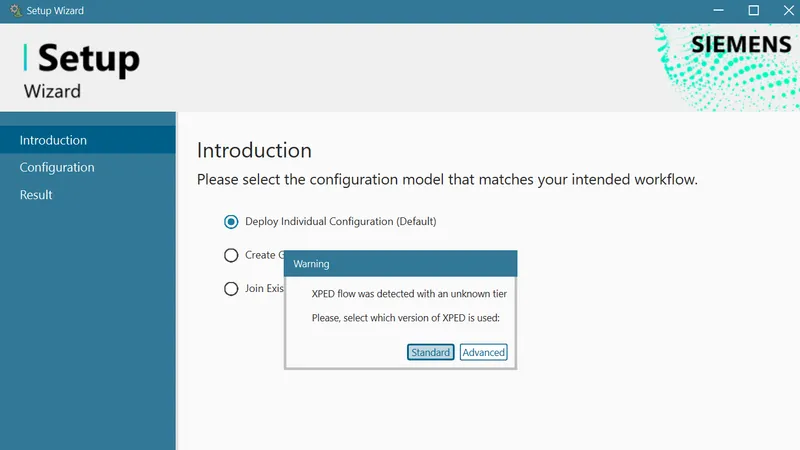
- Run Setup Wizard. Per Siemens, it deploys a ready-to-use library, project templates and configuration files in place of the raw default install. For 2610, Siemens’ introduction has you open the app Xpedition Std-Adv CMD 2610, type SetupWizard.exe and select Advanced as the tier. Choose Individual Configuration for a personal setup, or Join Existing Group Configuration to use the one your administrator created.
- Register for Support Center for the knowledge base, downloads, documentation and support cases.
What a licence includes
Siemens’ guide states that an Xpedition Advanced licence gives access to these applications:
| Application | Type (Siemens) | What Siemens says it is for |
|---|---|---|
| Xpedition Advanced | Desktop | Desktop design tools for creating schematics and layouts and managing libraries |
| Connect | Cloud | Browser-based application for managing Xpedition Advanced projects and collaborating with team members |
| PartQuest Portal | Cloud | Component search engine for curated Xpedition Advanced library symbols and footprints |
| PartQuest Explore | Cloud | Browser-based application for simulation and analysis of analog, digital, mixed-signal, electro-mechanical and electro-thermal circuits |
| PCBflow | Cloud | Browser-based application for checking PCB designs for manufacturability (DFM) |
Schematic, layout and library work happens in the desktop tools. The four cloud applications are services connected to them.
The analog and mixed-signal simulation here is the cloud application PartQuest Explore; Siemens’ edition checklist lists HyperLynx-powered “Analog / mixed-signal simulation” as an option for Xpedition Enterprise only. The checklist also lists core DFM checks (DFF, DFA) as included with Advanced and extended checks as an option. Valor NPI is a separate product.
A first-week learning path
Siemens groups its tutorials into a core flow and extended capabilities. The group and lesson names below are Siemens’. The day-by-day order is our suggestion.
| When | Tutorial groups (Siemens) | Siemens lessons (selection) |
|---|---|---|
| Day 1 | Setup Wizard; Library; Component Search & Download | Individual Configuration; Creating Symbols; Creating Cells; Creating Parts; Searching in PartQuest Portal; Importing into the Project Library |
| Day 2 | Schematic & Constraints | Creating a Schematic Project; Wiring a Schematic; Setting up Design Constraints; Packaging and Forward Annotation |
| Day 3 | Layout | Creating a New Layout; Placing Parts; Routing; Generating Manufacturing Outputs |
| Day 4 | Data Transfer & Collaboration; Design for MFG Analysis; Documentation Creation | Reviewing and Marking up Designs; Running Fabrication Analysis; Editing the Fabrication Drawing |
| Day 5, as your first board needs | Pre-Layout SI Analysis; Post-Layout SI Analysis; Rigid-Flex Layout; Advanced Logical Design; Advanced Physical Design; Panelization; AI Accelerated Functional Block Design | Analyzing Signal Integrity - Pre-Layout; Building a Rigid-Flex Stackup; Schematic Team Design; Sketch Planning & Routing |
Siemens’ guide has the full lesson list, with a product introduction PDF and videos. For two Day 5 topics, see our posts on high-speed design and rigid-flex design in Xpedition Advanced.
Siemens EDA also runs a live Xpedition Advanced release webinar on Thursday 10 December 2026 at 11:30 PM IST.
System requirements
Siemens’ buyer’s guide publishes system requirements for the Xpedition family. The supported desktop operating system is Windows 11 (64-bit versions), Enterprise Edition and Pro Edition, 24H2 and 25H2. Siemens says it knows of no issue with the Home or Educational editions but has not tested them, so they are not officially supported. Check company laptops before the licences arrive.
| Item | Baseline (Siemens) | Siemens’ recommendation |
|---|---|---|
| Processor | Dual-core Intel or AMD minimum | Intel i7, i9, Xeon or AMD Ryzen 7 or 9 |
| Memory | 32 GB RAM minimum recommended | 32 GB DDR5 |
| Swap space | 2x the amount of RAM | Not listed |
| Disk | Not listed | 1 TB SSD minimum, 2 TB SSD recommended |
| Graphics | Not listed | Dedicated graphics (4 GB) |
| Screen | Not listed | 1920 x 1080 minimum, 4K recommended |
Siemens adds that requirements scale with design complexity: layer count, density, SI/PI analysis, rigid-flex and 3D integration.
Offline use. The buyer’s guide says the named-user editions “Can work online or offline”. Siemens publishes a number only for Xpedition Advanced DS, the schematic-only companion seat: a DS user “can work offline for up to 14-days” after first going online to log in with Siemens credentials. Siemens gives no figure for Xpedition Advanced, so ask before you plan work at a site without internet access.
Questions Indian teams should settle first
Where does the cloud account store data?
Siemens’ guide says product configuration includes “selecting the region where you want to store your data”, and gives the choices: “Storage region options are United States (N. Virginia), Europe (Frankfurt), and Asia Pacific (Japan).” It adds: “Once you select your ECA’s storage region it can’t be changed.”
There is no India region in that list. Siemens’ public material also does not state exactly which data is held in the chosen region. The buyer’s guide says: “Store and manage your component/library and design data using your own systems or local storage.” Its answer to the question “Where is my data stored?” begins: “Data storage depends on your deployment approach and internal policies.”
Siemens’ Data Transfer and Collaboration introduction, linked from the same Getting Started guide, says that from Designer and Layout “users can easily send data to the cloud based Connect environment”. So treat any project you upload to Connect as held in the cloud.
If you work under a data-residency clause, a customer NDA or a defence or public-sector contract, confirm for your configuration, in writing and before purchase, which data goes to the cloud region. Select the region only after that.
Where does the licence come from?
Siemens’ guide says cloud-enabled desktop products are downloaded through Siemens Software Center. It also carries this note:
If your purchase was made through a reseller, you may receive your license from them directly.
GSAS is a value added distributor/reseller for Siemens EDA products. If you order through us, ask at order time how the licence will reach you, which business email address becomes the first ECA administrator and who to contact if a user’s access is blocked.
Next step
GSAS Micro Systems is an authorized Siemens EDA partner in India. We supply Xpedition Standard with token-based add-ons, Xpedition Advanced, Xpedition Advanced DS and Xpedition Enterprise. We do not publish prices for these products: GSAS quotes in INR with a GST invoice.
Tell us how many engineers need a seat, who will administer the account and what your data-residency terms are. GSAS has offices in cities including Bengaluru, Hyderabad, Chennai, Pune, Mumbai and Delhi NCR. Request a quote or book a demo. If you are still choosing an edition, read Xpedition Standard vs Xpedition Advanced or the four-edition chooser.
References
- Siemens: Getting Started guide for Xpedition Advanced, public revision generated 12 November 2026, with its product introductions “Setup Wizard”, “Advanced Logical Design” and “Data Transfer and Collaboration”
- Siemens: Xpedition buyer’s guide (named-user licensing, deployment, data management, system requirements)
- Siemens: Xpedition product family, section “Choose the right PCB design solution for you” (edition checklist)
- Siemens: Xpedition Advanced (concurrent schematic limit)
- Siemens: Xpedition Advanced DS (offline use)
- Siemens EDA: Xpedition Advanced release webinar (date and time)
- Siemens EDA, Electronic Systems Design blog: What’s new in Xpedition 2610 (26 October 2026)
Also appears in:
Interested in Siemens EDA tools?
Talk to our application engineers for personalized tool recommendations.
More from Siemens EDA
View all →
PADS Pro Essentials vs Xpedition Standard: Which One to Start With
18 Nov · 8 min
Concurrent Schematic Design in Xpedition Advanced and Advanced DS
18 Nov · 7 min
From Layout to Fabrication in Xpedition Advanced: BluePrint, Panels, DFM
18 Nov · 10 min
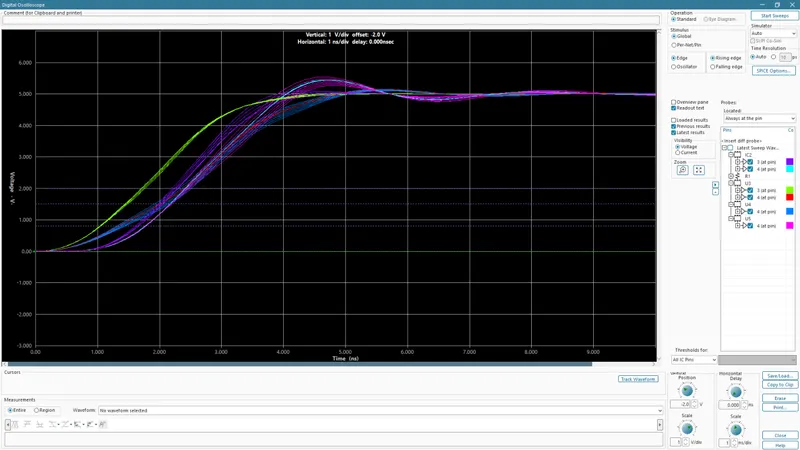
High-Speed PCB Design in Xpedition Advanced: Constraints, Routing and SI
18 Nov · 9 min
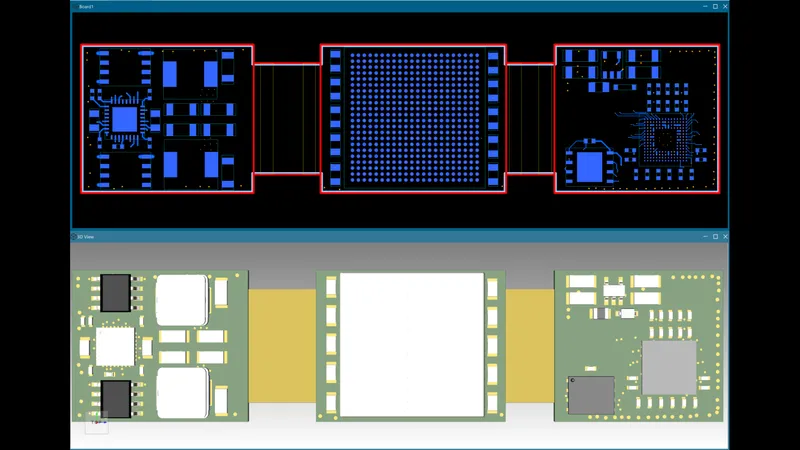
Rigid-Flex PCB Design in Xpedition Advanced: Stackups, Bend Areas and 3D
18 Nov · 8 min
Xpedition Advanced vs Xpedition Enterprise: Where Advanced Stops
18 Nov · 8 min